Run bulk payouts from a Google Sheet: a step-by-step guide
Keep payroll and supplier lists in the Google Sheet your team already uses, and let FinoQ read it for bulk payouts. Setup, columns and common fixes.
FinoQ Team
Almost every small team plans its payments in a spreadsheet. The payroll sheet. The supplier list. The weekly rider tab. The problem starts when those numbers have to be copied, by hand, into a payments app.
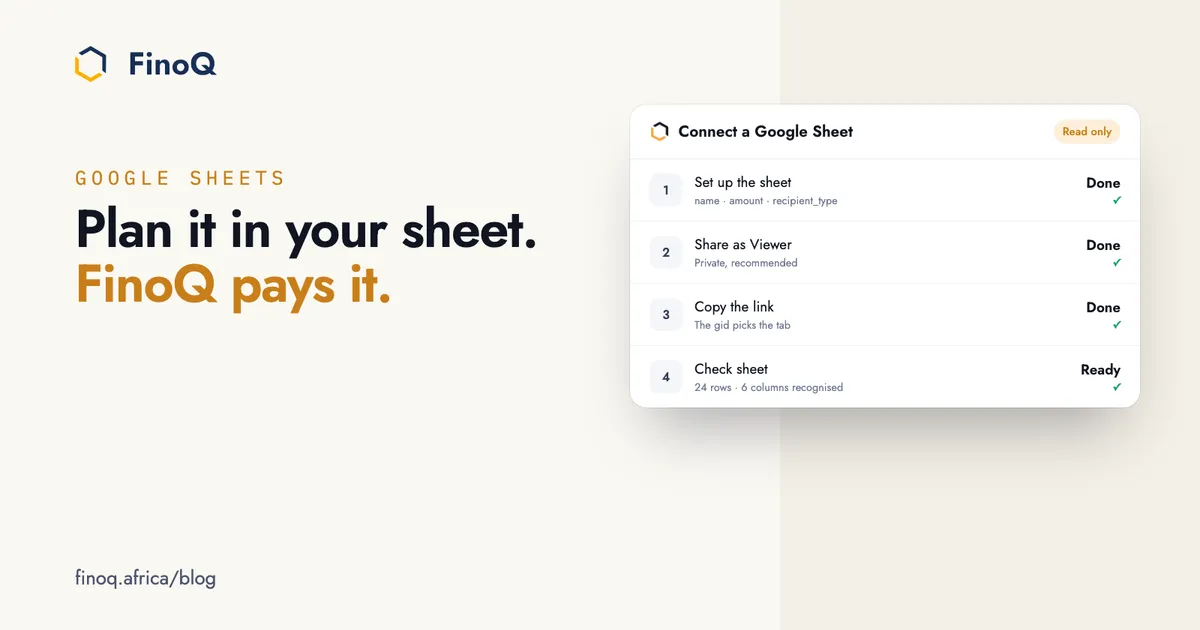
With FinoQ you can skip the copying. Connect the Google Sheet you already use, and FinoQ reads it when you build a bulk payout. The sheet stays the plan. FinoQ only reads it, and nothing is ever written back.
Step 1: Set up the sheet
Row 1 is the header row. Every row below it is one recipient.
Required columns:
| Column | What goes in it |
|---|---|
name |
The recipient’s name, as you expect it to come back from the name check |
amount |
The amount to send |
recipient_type |
MSISDN, BANK, PAYBILL or TILL |
Useful optional columns:
| Column | What goes in it |
|---|---|
phone_number |
For mobile money |
account_number |
Bank account, or the paybill account number |
account_code |
Bank code, or the paybill or till number |
spend_category |
Payroll, Suppliers, Rent and so on |
note |
November salary, Invoice 4471 |
channel_code |
For payouts outside Kenya, such as UG-MTN |
Any other columns are ignored, so your sheet can keep its own working columns. The fastest start is the sample file in the Connect a Google Sheet window: download it, then in Google Sheets use File → Import → Upload.
Step 2: Share the sheet
Click Share in Google Sheets, then pick one:
- Keep the sheet private (recommended). Add the FinoQ service email shown in the setup window as a Viewer, untick Notify people, and send.
- Make it link-visible. Set General access to Anyone with the link, as a Viewer. Anyone with the link can read it, so prefer the private option for payroll.
Step 3: Copy the link
Copy the address from your browser while the right tab is open. The part after gid= tells FinoQ which tab to read. Without it, the first tab is used. So one spreadsheet can hold payroll, suppliers and riders as separate tabs.
Step 4: Paste it and check
Paste the link into the Google Sheet link box and press Check sheet. You see how many rows were found and which columns were recognised. If something is flagged, fix it in the sheet and check again.
Then the run works like any other bulk payout: names are checked, you review the total, and you confirm with a one-time code.
Why teams like this
- No new tool to learn. Planning and data entry stay in the sheet.
- One source of truth. Someone leaves the team? Delete their row. They are not in the next run.
- Every payout carries its reason, because the category and note travel from the sheet.
Common fixes
- “Column not recognised”: check the header spelling in row 1, such as
recipient_type, not Recipient Type. - Wrong tab read: copy the link again with the right tab open, so the
gid=matches. - Phone numbers lose their leading zero: format the column as plain text, or use the
254…form. - Amounts read as text: remove currency symbols and thousands separators from the amount column.
Getting started
Open Payouts → Bulk payouts → New bulk payout and choose Google Sheet. New to bulk payouts? Start with how to pay salaries to M-Pesa and bank accounts in one run.